Tuesday, February 4, 2014
Excel - Mortgage Principal Paid over a Period
Interested in determining how much principal is paid on a mortgage between two time periods?
CUMPRINC(Rate, nper, pv, start_period, end_period, type)
Example: How much principal will a borrower pay between their 10 and 15 payment on their mortgage? Principal balance at the starting period is $51000 and interest rate in 9%.
Rate - it's the interest rate for the period, so for a mortgage with 9% you need to divide by 12 to get the monthly interest rate, .09/12
nper - total number of payments to be included, so the number of months between the start period and end period (15-10), 5
pv - the principal at the starting period
Start_Period - Payment date doesn't work, you have to figure out the payment number, i.e. the 10th payment out of the term. 10
End_Period - Again, not a date, it has to be the number of the last payment, 15
Type - set it to 0 if the payment is made on the first of the month, 1 of the payment is on the end of the month
=CumPrinc( .09/12, 5, 51000, 10, 15)
Cumulative Principal Paid Between Periods

Thursday, January 16, 2014
Excel - Countifs Using Equal To or Greater Than with a Date Field
There's a wrinkle in the countifs() formula for using a date field rather than an explicitly declared date in the formula.
Here's an example:
=COUNTIFS($P$15:$P$2050,"91+",$D$15:$D$2050,$A$1,$Q$15:$Q$2050,">=1/10/2013")
I wanted to replace the "1/10/2013" with a date field in A3.
My first attempt was this:
=COUNTIFS($P$15:$P$2050,"91+",$D$15:$D$2050,$A$1,$Q$15:$Q$2050,">=$A$3")
Which doesn't work. My next try was this:
=COUNTIFS($P$15:$P$2050,"91+",$D$15:$D$2050,$A$1,$Q$15:$Q$2050,">="$A$3)
Again, that didn't work.
Now here's the correct way to use a date field in Countifs():
=COUNTIFS($P$15:$P$2050,"91+",$D$15:$D$2050,$A$1,$Q$15:$Q$2050,">="&$A$3)
See that little ampersand between the greater than and equal section and the field? That's the trick.
You're welcome.
Here's an example:
=COUNTIFS($P$15:$P$2050,"91+",$D$15:$D$2050,$A$1,$Q$15:$Q$2050,">=1/10/2013")
I wanted to replace the "1/10/2013" with a date field in A3.
My first attempt was this:
=COUNTIFS($P$15:$P$2050,"91+",$D$15:$D$2050,$A$1,$Q$15:$Q$2050,">=$A$3")
Which doesn't work. My next try was this:
Again, that didn't work.
Now here's the correct way to use a date field in Countifs():
=COUNTIFS($P$15:$P$2050,"91+",$D$15:$D$2050,$A$1,$Q$15:$Q$2050,">="&$A$3)
See that little ampersand between the greater than and equal section and the field? That's the trick.
You're welcome.
Thursday, November 7, 2013
Excel - Grouping Dates by Month in a Pivot Table
For this post I am referencing the work creating by the talented minds at Chandoo.org, a great resource for advancing your knowledge of Excel. Here's the direct link to their pivot table post.
I ran into a problem when creating a pivot table yesterday. Here's my raw data, a series of daily bank payments that I wanted to group to show what months the account had made payments in.

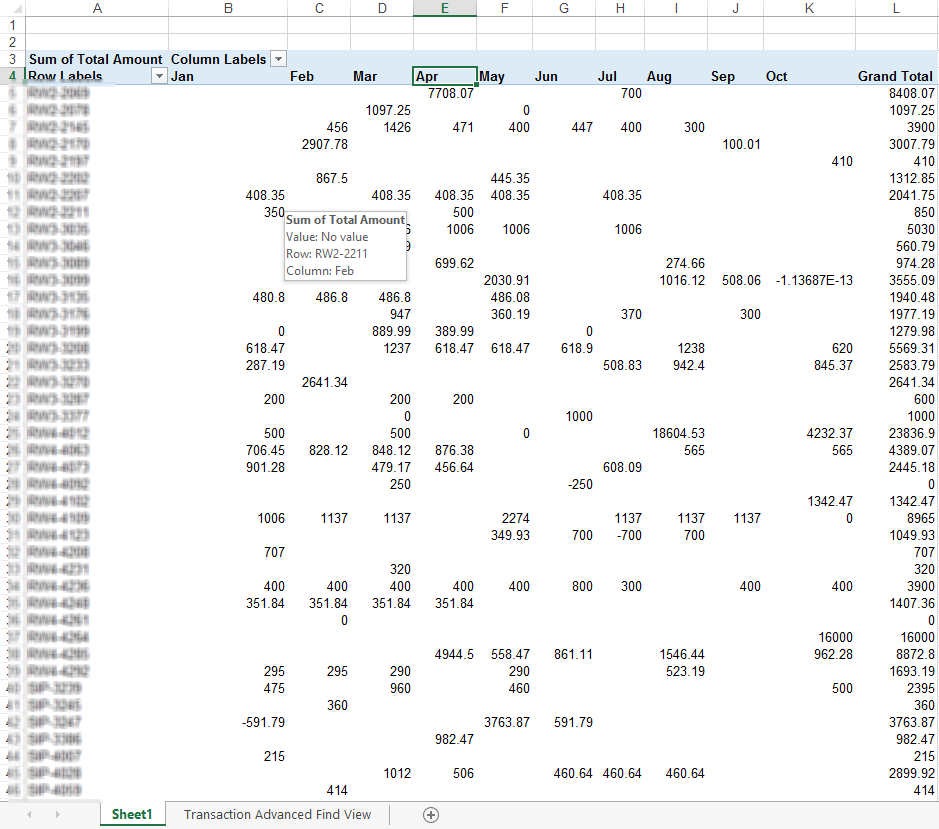
Creating the pivot is pretty easy, but the result is that for each account the payments show up by day instead of summed up by month.

Here's the trick that the guys at Chandoo.org showed me. Right click on a date cell; the pull-down menu will show a category called "Group...". Click Group and you can select month, year, etc.
The result is a nice pivot table with your numbers summed up by month.

One caveat, it seems when you group by month it only looks at the month part of a date field, so if you have dates spanning multiple years they will get summed up to the specific month. So you have to select group by month and year, this will do the trick!
I ran into a problem when creating a pivot table yesterday. Here's my raw data, a series of daily bank payments that I wanted to group to show what months the account had made payments in.

Creating the pivot is pretty easy, but the result is that for each account the payments show up by day instead of summed up by month.

Here's the trick that the guys at Chandoo.org showed me. Right click on a date cell; the pull-down menu will show a category called "Group...". Click Group and you can select month, year, etc.


The result is a nice pivot table with your numbers summed up by month.
One caveat, it seems when you group by month it only looks at the month part of a date field, so if you have dates spanning multiple years they will get summed up to the specific month. So you have to select group by month and year, this will do the trick!
Monday, September 9, 2013
"Get Lucky" using Mario Paint version
Just cuz this is really cool...
Great story about it in Wired.
Wednesday, August 14, 2013
PDF - Exporting data from the pdf to a spreadsheet
I've received a bunch of pdf files and I want to get the data out of the PDF form and into a spreadsheet.
Fortunately the vendor that created the pdf files is using a pdf form, so the fields are not just scanned text, they're actual data elements.
The Adobe Acrobat XI website has an excellent description of how to import and export data from pdf files, here's the link that I got my information on:
Here's the excerpt I used, you have to have Acrobat Pro to do this.
Merge exported data files to a spreadsheet
If you want to compile data from forms that are not already in a data set, use the following process.
- Choose Tools > Forms > More Form Options > Manage Form Data > Merge Data Files Into Spreadsheet.
- In the Export Data From Multiple Forms dialog box, clickAdd Files.
- In the Select file Containing Form Data dialog box, select a file format option in File Of Type option (Acrobat Form Data Files or All Files). Then locate the form files that you want to merge into the spreadsheet, select them, and click Open.
- Repeat the previous step to add form data files that are in other locations, as needed.
- Click Export. Then select a folder and filename for the spreadsheet, and click Save.
- In the Export Progress dialog box, click either View File Now to open the spreadsheet file or Close Dialog to return to Acrobat.

How to get the data out of pdf to a spreadsheet
Wednesday, May 8, 2013
Excel - Shade Alternating Rows
Making alternate rows go from white to shaded and back to white is a pretty quick job once you know what to do.

1. Select the cells you want to add alternating shade on
2. On the Home Ribbon click the "Conditional Formatting" button
3. Select "New Rule"
4. Among the rule options select "Use a formula to determine which cells to format"
5. Type in the formula "=Mod(Row(),2)=0"
6. Last of all, cluck the format button and select a color you want to use for the alternating cell shading.

Option 2, you can also use the "Format as Table" button next to the "Conditional Formatting" button on the Home ribbon. This has all sorts of other built in functionality that goes way beyond just alternating shading so I don't use it that much.
Microsoft Instructions on how to create alternate cell shading...
Tuesday, April 23, 2013
Word - Comparing Documents for Changes - Meet the "Compare" button
Am I the last person on the planet to know this function was pre-built into Microsoft Word 2010?
I've been using a free application called Winmerge to compare documents for changes between one version and another. You can read more about it at http://www.codejacked.com/comparing-two-versions-of-a-word-document/. It works awesome for comparing two code files side by side and seeing the changes between them. Problem is, I can't figure out how to get it to work with Word 2010 .docx files, it gives me a bunch of gobbledy gook instead of words.
Enter the "Compare" button in Word 2010.

It's under the "Review" tab in the top menu of word. Click it and you'll be prompted to select two Word documents. It then lists all the changes between these two versions and shows the two docs as well as you scroll through the changes.
I'm using this to review a contract before signing it, just to make sure there haven't been any changes slipped in since I last reviewed it.
Now, I just need to figure out how to compare .pdf files...
Subscribe to:
Posts (Atom)